Unlocking Celebration: How to Master the Confetti Photoshop Brush for Dynamic Designs
There is a specific moment in the design process where a layout feels technically correct but emotionally flat. You have your typography aligned, your colors balanced, and your imagery crisp, yet the composition lacks energy. This is often where designers reach for texture and overlay elements to bridge the gap between sterile perfection and organic excitement. A Confetti Photoshop Brush set is one of the most effective tools for injecting that immediate sense of celebration and movement into your work. However, simply downloading a brush pack and clicking randomly on your canvas rarely yields professional results. To truly leverage these tools, you need to understand not just what they are, but how to avoid the common pitfalls that turn a festive accent into a visual distraction.
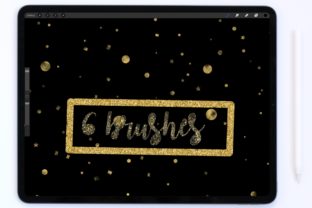
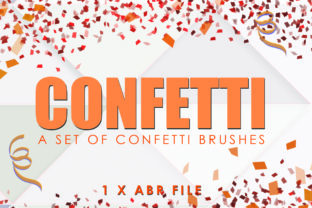
At its core, this specific collection offers a curated solution for adding depth without clutter. The set includes four distinct confetti brushes and two ribbon brushes, designed to work in harmony rather than competition. What makes this particular toolkit valuable is the variation in scattered effect levels across the four confetti options. Some users mistakenly believe that all particle brushes function identically, leading them to use a single brush repeatedly until the effect looks dense enough. This approach often results in unnatural, repetitive patterns that the human eye immediately identifies as digital artifacts. By utilizing the different scatter levels provided in this set, you can build layers of depth, placing larger, sparser pieces in the background and tighter, denser clusters in the foreground to mimic real-world physics.
The Trap of Ignoring Color Dynamics
One of the most frequent oversights when using particle brushes is neglecting the color dynamic settings. Many beginners apply a brush with a hardcoded black or white foreground color, assuming they can simply change the layer blend mode later to fix it. While this works in some instances, it often leads to muddy results, especially when trying to match a specific brand palette or event theme. The confetti brushes in this set are engineered to be color dynamic, meaning they respond to your foreground and background color settings to generate natural variations within a single stroke.
If you ignore this feature, your confetti will look monochromatic and lifeless, resembling dust rather than celebration. A better approach is to select two complementary shades from your project's color scheme before applying the brush. For instance, if you are designing an invitation for a gold-themed anniversary, set your foreground to a deep champagne and your background to a bright metallic gold. When you stroke the canvas, the brush will automatically interpolate between these tones, creating a realistic, multi-dimensional shimmer that feels hand-placed rather than stamped. This small adjustment significantly elevates the perceived quality of the final output.
Misunderstanding Scale and Resolution
Another critical area where designers stumble is the relationship between brush size and document resolution. A common mistake is using a default brush size on a high-resolution print file, resulting in confetti that appears pixelated or uncomfortably large upon closer inspection. Conversely, using a tiny brush on a web banner can make the effect invisible, wasting the potential impact of the tool. The Confetti Photoshop Brush is vector-ready in its application logic, but its raster output depends entirely on how you scale it relative to your canvas.
Before you begin decorating your project, always check your document's DPI. If you are working on a 300 DPI print layout, you must increase the brush diameter significantly compared to a 72 DPI web graphic. Do not rely on the "fit to screen" view in Photoshop, as this can deceive your eye regarding the actual print size. Zoom in to 100% to evaluate the sharpness and scale of the particles. If the edges look soft or blocky, resize the brush tip properties rather than stretching the layer after painting, which degrades quality. Taking a moment to calibrate your brush size ensures that the ribbons and confetti remain crisp and professional, regardless of the final output medium.
Balancing Ribbons and Confetti
With a set containing both confetti and ribbon elements, there is a temptation to use everything at once. This "kitchen sink" approach often clutters the design, making the text hard to read and the focal point unclear. The two included ribbon brushes are powerful statement makers; they imply motion and flow that static confetti cannot achieve alone. However, they should be used with restraint.
A practical rule of thumb is to let one element lead and the other support. If you are creating a dynamic header, consider using the ribbon brushes to create a sweeping flow that guides the viewer's eye across the headline, then use the lighter scatter confetti brushes to fill the negative space subtly. Avoid overlapping heavy ribbon strokes directly over crucial text unless you are confident in your masking skills. The goal is to enhance readability and mood, not to obscure the message. By treating the ribbons as structural guides and the confetti as atmospheric texture, you create a hierarchy that keeps the design clean and effective.
Workflow Efficiency and Layer Management
Efficiency is often lost when designers fail to organize their brush applications. Applying all your confetti and ribbons on a single layer is a recipe for frustration during the revision phase. If a client asks to move the confetti slightly to the left or change the opacity of the ribbons, you will find yourself erasing and repainting, potentially damaging the underlying artwork.
To maintain a non-destructive workflow, create separate layers for each brush type or even for different density levels. Name them clearly, such as "Confetti_Light_Scatter" or "Ribbon_Flow_Left." This practice allows you to adjust blend modes, opacity, and position independently. It also enables you to apply layer masks to specific elements without affecting others. For example, you might want the confetti to fade out near the edges of the frame while keeping the ribbons solid. Having these elements on isolated layers makes such refinements instantaneous rather than laborious. This level of organization is what separates amateur experiments from professional deliverables.
Making the Right Choice for Your Project
Before integrating these tools into your workflow, ask yourself what emotion you are trying to evoke. Is the project a chaotic, high-energy party flyer, or a sophisticated, elegant wedding invitation? The answer dictates which of the four scatter levels you should prioritize. High scatter creates a sense of explosion and randomness, ideal for sales announcements or New Year's graphics. Lower scatter levels offer more control and elegance, suitable for subtle backgrounds in corporate celebrations or refined branding materials.
Ultimately, the value of a Confetti Photoshop Brush set lies not just in the files themselves, but in the intentionality of their application. By respecting color dynamics, managing scale correctly, balancing your elements, and maintaining a clean layer structure, you transform simple digital stamps into a cohesive design language. Avoid the urge to overuse the effects; often, a few well-placed ribbons and a whisper of scattered color do more to excite your audience than a canvas covered in noise. Use these six brushes as precise instruments to celebrate your content, ensuring that every stroke adds value to the viewer's experience.