Unlocking Authentic Sketches with a Realistic Photoshop Pencil Brush
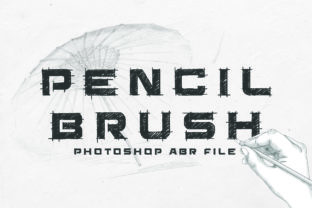
Digital art often struggles with one specific hurdle: the "perfect" look. When every line is too smooth and every shade too uniform, the soul of the artwork can feel sterile. This is where a Realistic Photoshop Pencil Brush becomes an essential tool in your creative arsenal. By simulating the texture of graphite on paper, these brushes allow you to inject a handcrafted, organic feel into your projects, whether you are designing a logo, illustrating a children's book, or creating social media graphics for a small business. However, simply downloading a brush pack does not guarantee a masterpiece. Many creators, from beginners to seasoned professionals, fall into traps that undermine the very realism they seek to achieve.
The primary allure of a Photoshop brush that simulates pencil strokes is its ability to break the digital barrier. It introduces grain, pressure sensitivity, and the subtle irregularities of a physical medium. Yet, a common misunderstanding is assuming that the brush alone does all the heavy lifting. Users often select a high-quality brush but pair it with the wrong canvas settings or workflow habits, resulting in an image that looks like a digital filter applied to a photo rather than a genuine sketch. To truly benefit from these tools, one must understand the ecosystem in which they operate.
The Trap of Ignoring Canvas Texture
One of the most frequent oversights when using a realistic pencil brush is neglecting the background surface. In the physical world, pencil interacts with toothy paper; the graphite catches on the peaks and skips over the valleys. If you paint on a pure white, smooth digital layer, even the best brush will look flat and artificial. This mistake affects the overall quality and presentation of your work, making it appear obviously computer-generated despite your efforts.
To avoid this, always start with a textured background. You can import a high-resolution scan of watercolor paper, kraft paper, or a dedicated noise overlay. Set this layer to Multiply or Overlay depending on the effect you need. When your Realistic Photoshop Pencil Brush glides over this texture, the digital pixels interact with the underlying grain, mimicking the physical resistance of pencil on paper. This simple step transforms a good sketch into a believable one.
Misunderstanding Pressure Sensitivity
Another critical area where users stumble is the configuration of pressure sensitivity. A static line weight kills the illusion of a hand-drawn piece. Real pencil sketches vary in thickness and opacity based on how hard the artist presses. If you are using a mouse or a tablet without properly configuring the brush dynamics, your lines will lack life. This leads to a rigid, robotic appearance that fails to communicate the fluidity of human movement.
Before you begin drawing, dive into the Brush Settings panel in Photoshop. Ensure that Size Jitter and Opacity Jitter are controlled by Pen Pressure. If you do not have a pressure-sensitive tablet, consider adjusting the settings to use Fade or Stylus Wheel as a temporary workaround, though investing in an entry-level tablet is highly recommended for serious work. Test your strokes frequently; a good pencil brush should produce a hairline when touched lightly and a bold, dark mark when pressed firmly. This dynamic range is what gives your project its handcrafted feel.
The Overuse of Uniformity
Beginners often try to keep their lines too clean. They strive for perfection, erasing every wobble and ensuring every hatch mark is perfectly parallel. Ironically, this pursuit of neatness destroys the realism. Real sketches are messy; they contain construction lines, varying densities, and accidental smudges. When you force a digital tool to be too precise, you lose the charm that makes the medium appealing in the first place.
Embrace the imperfections. Allow your lines to cross outside the boundaries occasionally. Vary the direction of your shading strokes rather than sticking to a single 45-degree angle. A Realistic Photoshop Pencil Brush is designed to handle these variations gracefully. If your shading looks too uniform, switch between different pencils within your brush set—perhaps alternating between a sharp 2H for light guidelines and a soft 6B for deep shadows. This variation adds depth and complexity, preventing the image from looking like a repetitive pattern.
Evaluating Quality Before Downloading
With thousands of free resources available online, it is tempting to grab the first brush pack you find. However, not all brushes are created equal. Low-quality packs often lack proper alpha channels, resulting in pixelated edges or unnatural repetition patterns. Using these can degrade the professionalism of your final output, especially if you are creating assets for clients or marketing materials.
Before downloading, check the preview images closely. Look for evidence of texture variation within a single stroke. Does the brush simulate the grain of the lead, or is it just a solid gray shape? Read the description to see if the creator mentions compatibility with your version of Photoshop. High-quality packs usually come with installation instructions and sometimes even video tutorials. Investing time in finding a reputable source saves you hours of frustration later. Remember, a premium or well-reviewed free pack often includes multiple variations (hard, soft, textured, smooth) that give you the versatility needed for complex illustrations.
Installation and Setup Best Practices
Once you have secured a high-quality asset, proper installation ensures it functions correctly. Most modern brushes come in .ABR files. The process is straightforward, but errors here can lead to the brush not appearing in your list or behaving erratically.
- Download the file and ensure it is unzipped if it came in a compressed folder.
- Open Photoshop and select the Brush Tool.
- Click the gear icon in the Brushes panel or right-click on the canvas to open the menu.
- Select Import Brushes and navigate to your .ABR file.
- Once loaded, scroll to the bottom of your brush list to find the new set.
After installation, take a moment to organize. Create a dedicated group in your Brushes panel for your sketching tools. This improves efficiency and keeps your workspace clutter-free, allowing you to focus on creation rather than searching for tools.
Final Thoughts on Digital Sketching
Integrating a Realistic Photoshop Pencil Brush into your workflow is about more than just changing a tool setting; it is about adopting a mindset that values texture, variation, and the human touch. By avoiding the pitfalls of smooth canvases, static lines, and excessive perfectionism, you can create digital art that resonates with viewers on an emotional level. Whether you are a freelancer pitching to a new client or a hobbyist exploring a new passion, mastering these nuances elevates your work from standard digital imagery to authentic, handcrafted art. Take the time to experiment with your settings, respect the texture of your virtual paper, and let the imperfections tell your story.